Configuration
To upload customer data to Experian you will need to access the Secure Transport Service (STS).
To configure the Secure Transport Service
- Open WinSCP.
- Select New Site in the left hand window.
- Select SFTP in the File protocol drop down.
- Add the Host name details. In this example, we are using the host name
sft1.experian.com.au. The following screenshot shows an example of this configuration in WinSCP.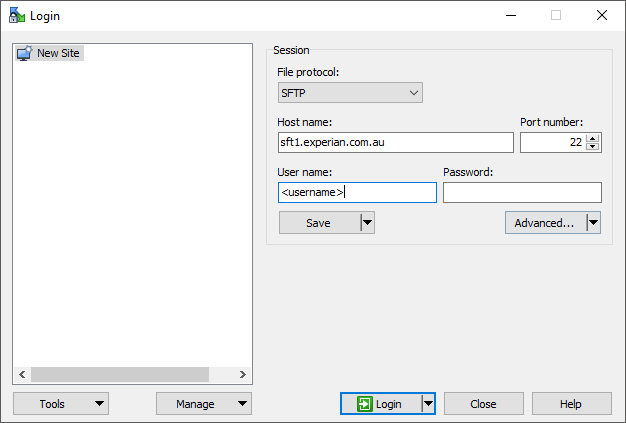
The Secure Transport Service has the following instances sft1.experian.com.auandhttp://gts-not-stss.uk/. Thesft1.experian.com.auinstance is the most commonly used and is the one used in this example. If you need to configure data transfer usinghttp://gts-not-stss.uk/, you will need to set WinSCP to use port 522. - Add your User name.
Contact the Experian STS team for your username and private key (see below) or request STS access using a Service Now request. - Click Advanced.
- In the Advanced Site Settings dialog, select Authentication in the SSH section in the left hand window.
- In the Authentication dialog, click the ellipsis button in the Private key file field and browse to your private key file. Your private key will need to be in .ppk format.
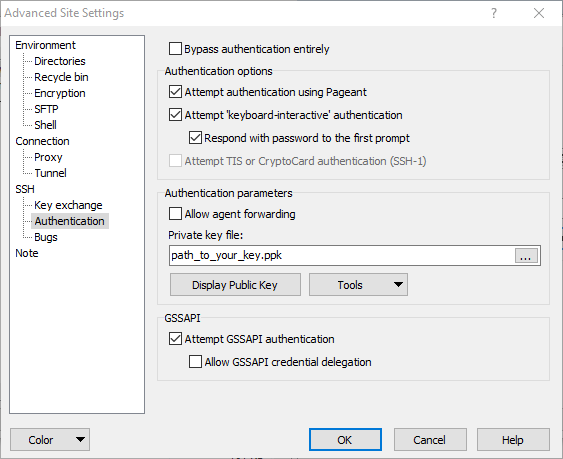
Contact the Experian STS team for your private key file. This file should be stored on your local machine/server. - Click OK.
- Click Save and save your site with an appropriate name.