User Interface
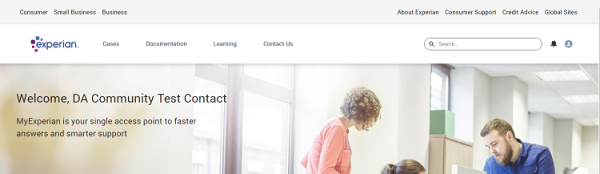
Top Navigation
The MyExperian top navigation bar has the following options:
- Experian logo - selecting this will return you to the MyExperian homepage
-
Cases - allows access to the Case Management page
- Documentation - allows access to a selection of categorised knowledge articles
-
Learning – provides access to a range of online product learning courses
- Contact Us - provides access to a list of worldwide contact numbers
- Search (
 ) - the global search allows you to search all MyExperian content. This search will search knowledge content, personal files and cases
 - Notifications (
 ) - provides access to a list of notifications for your profile, including case updates and updates on followed articles
 - User options (
 ) - allows access to your user profile options
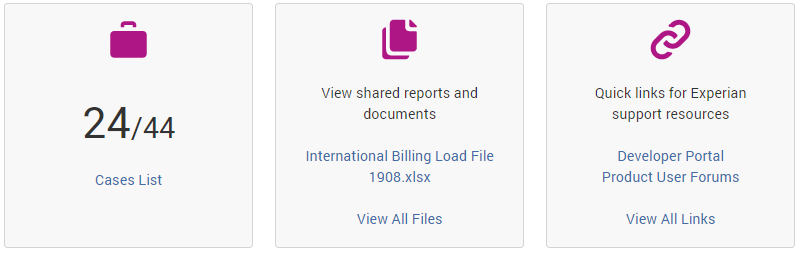
Key Information tiles
The Key Information tiles at the bottom of the homepage allow access to:
- Case Lists - allows access to the Case Management page. The number on this tile indicates the number of open cases compared to the total number of cases. This can also be accessed from the Cases link in the top navigation bar.
- View shared reports and documents - a repository with files that are personal to you. This area contains items added by your service manager.
- Quick links for Experian support resources - allows access to various product learning resources and sites (such as, the Global Developer Portal).